Others
Email
User can edit these properties for when they need eTask to send an email notification:
-
When the selected event occurs.
-
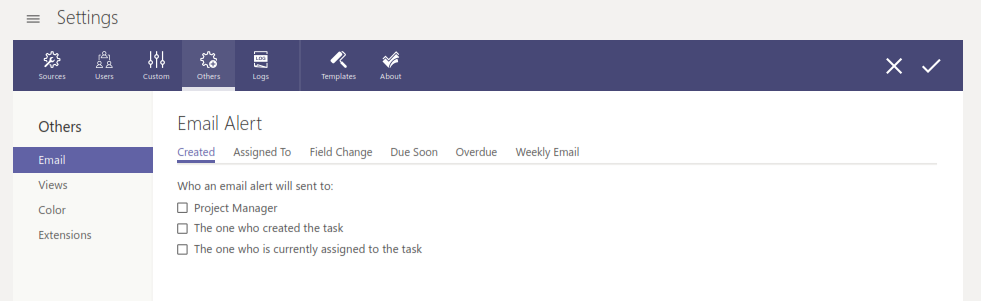
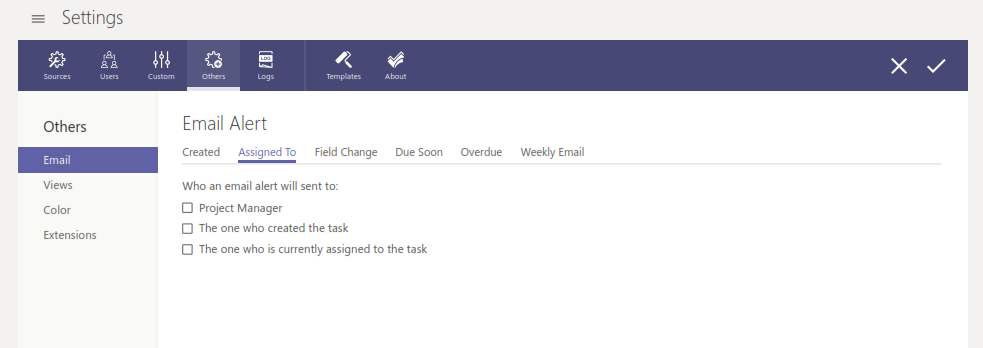
Who will receive the email.
-
How often they will receive it.
Create: when a task/bug is created
Assigned To: When a task/bug is created, and someone is assigned to it.
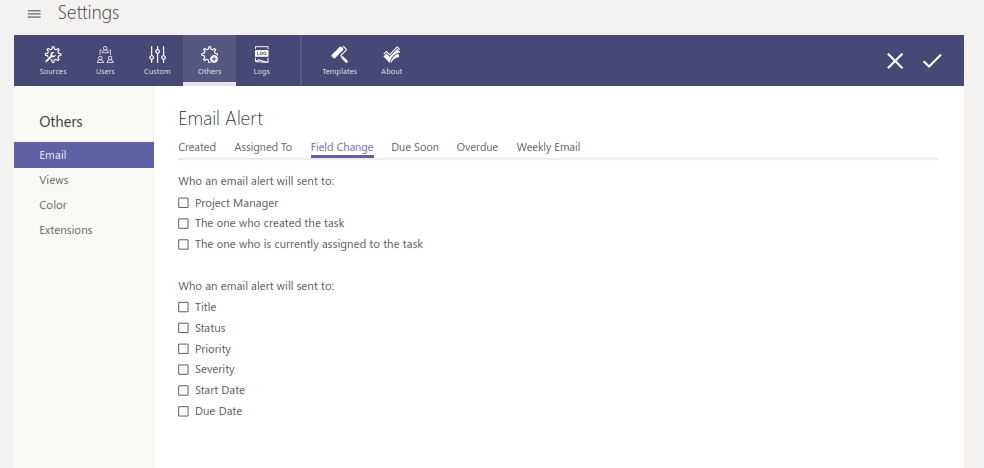
Field Change: When a field of a task/bug is changed and saved.
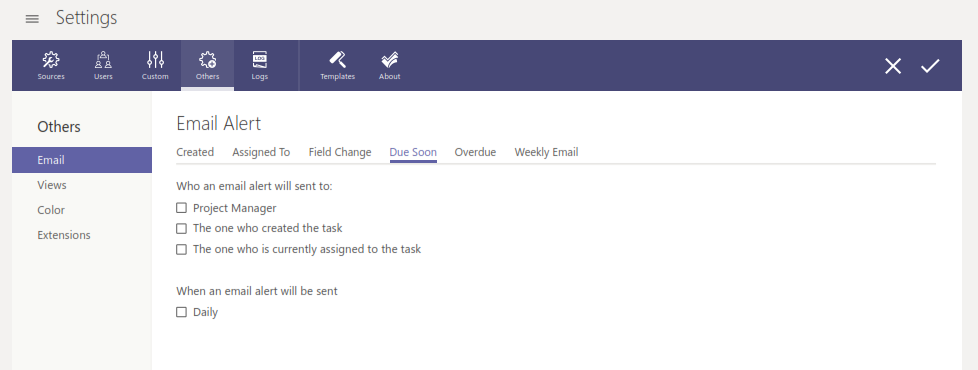
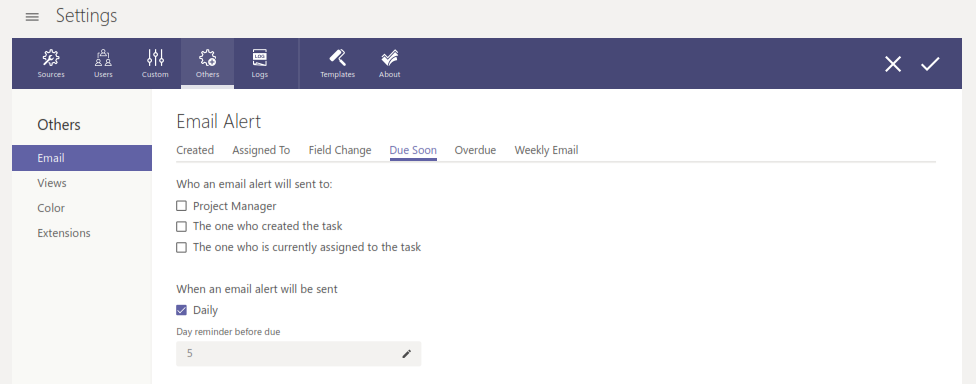
Due Soon: When a task/bug is near its due date, the number can be set in Custom > Date > Due Soon (if Daily is selected). User can click on  to be redirected to Custom > Date > Due Soon to edit.
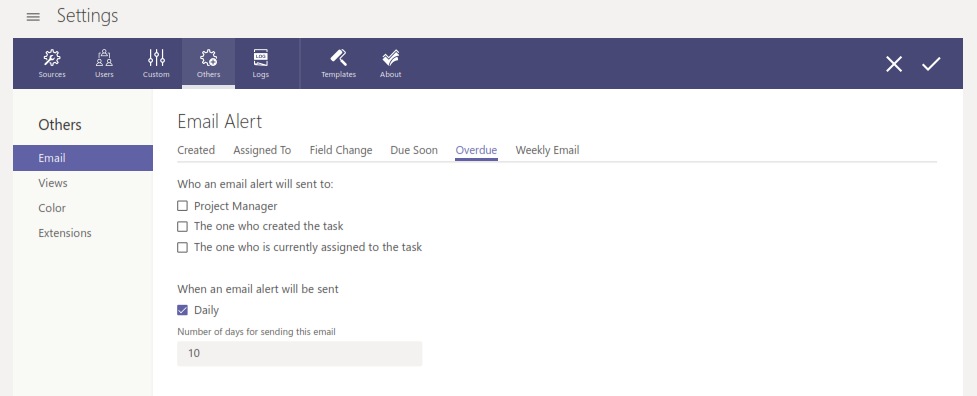
Overdue: When a task/bug has passed its due date. User can also edit the number of days that the notification will be sent after the task is due (if Daily is selected).
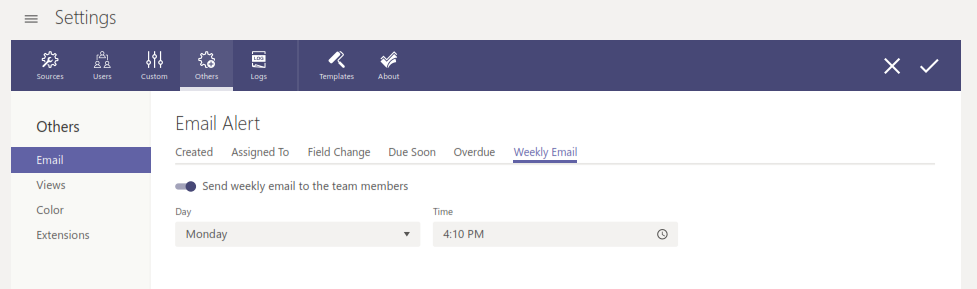
Weekly Email: Give a summary of task and bug status based on the determined time. If the toggle is off, no email will be sent.
Views
Customize user view to improve their efficiency.
Grid
Show completed: Tasks with Completed status will be show in Team Task.
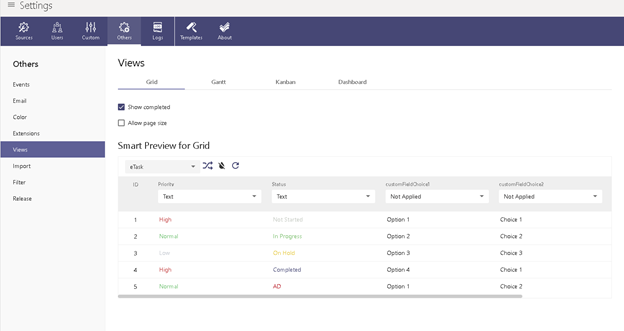
Smart Preview for Grid: Colorize your grid to have a better quick view and manage your works effectively.
- Tool bar
- Select eTask or eTask grid.
- Randomize colors
- Reset to Default
- Reload grid
- For each property, you can select apply color for:
- Row – color whole row
- Cell – color within the cell
- Text – color the display text
- Highlight – color the background of display text
- Not Applied
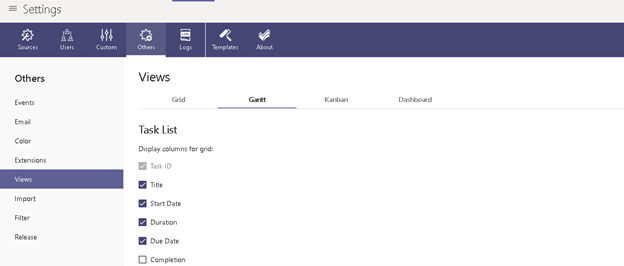
Gantt Setting for task list
- Select columns to be shown on Task List.
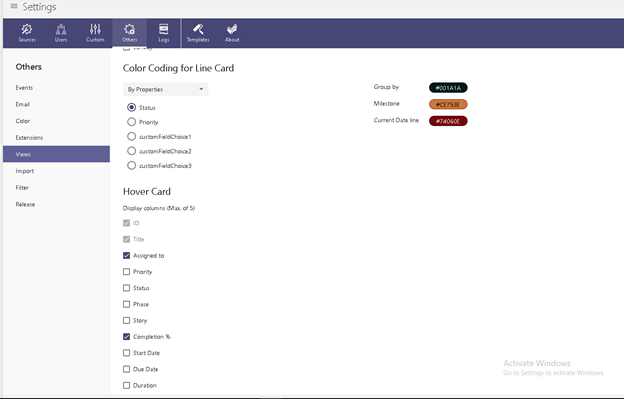
 Settings for Line Card
 - Select colors to be shown on Line Card.
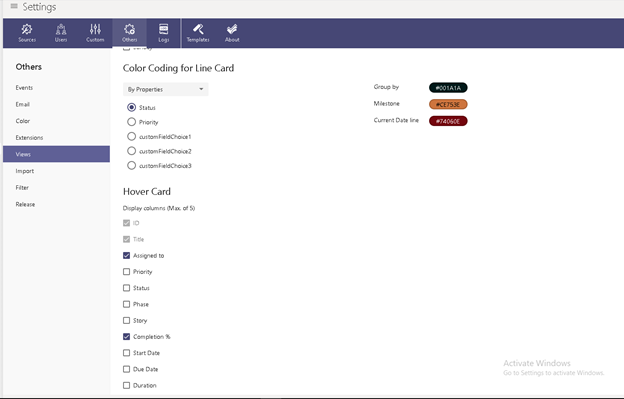
Settings for Hover Card
- Select columns to be shown on Hover Card.
Kanban
TBD
Dashboard
TBD
Color
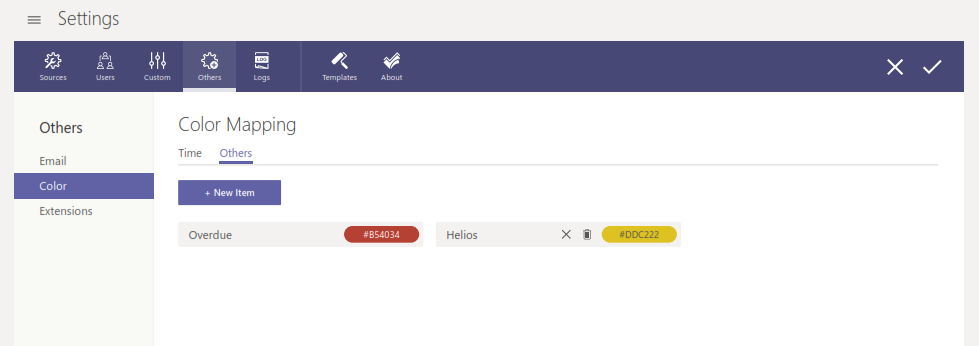
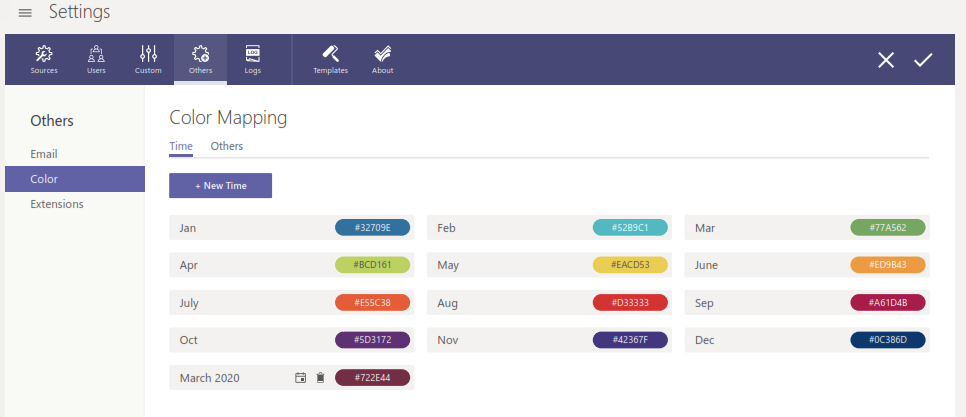
Configure Color Mapping to update the colors in Chart view.
All the colors of months in Time subtab are assigned by default when user installs the eTask app. They cannot be removed.
User can click on + New Time to assign color to another specific time. These can be reassigned or deleted.
In the Others subtab, user can click on + New Item to assign color to certain item in eTask. These can be renamed or deleted.