Custom
Source
-
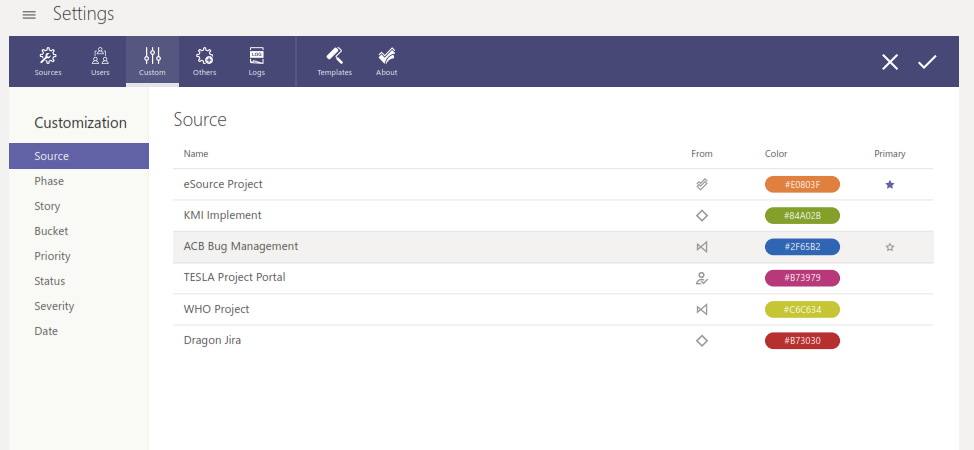
List all projects, their associated database and colors. User can assign a different color if they need.
-
If a source is selected as primary, it will be auto-assigned when user creates a new task/bug.
Phase
Overview
-
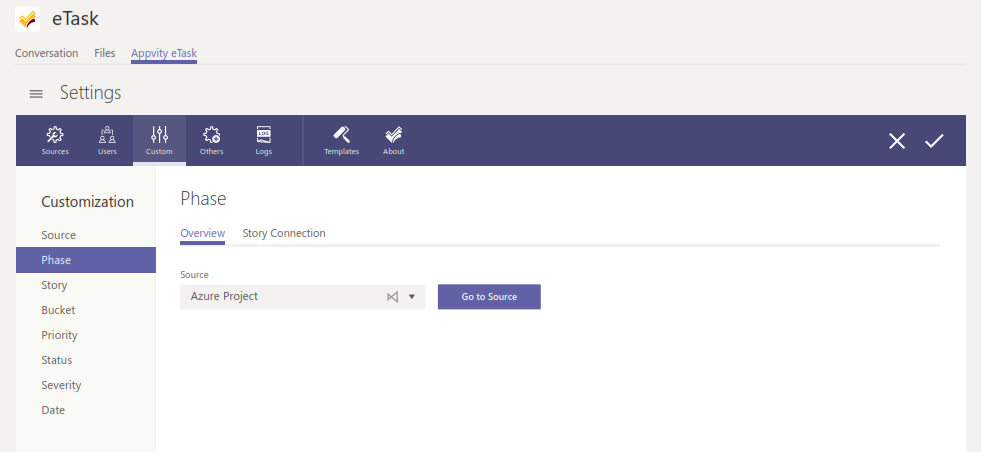
eSource is selected
-
List all the phases (Iteration, Sprint) from the eSource.
-
If a Phase is selected as primary, it will be auto-assigned after the appropriate source is chosen when user creates a new task/bug.
-
User can hover over the right end of a Phase to edit
 or delete
  it.
it.
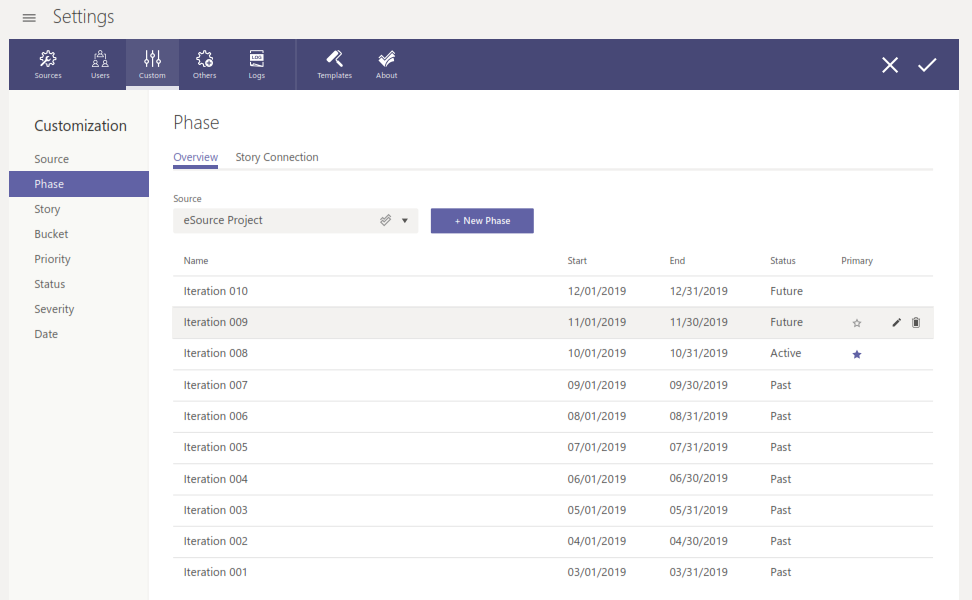
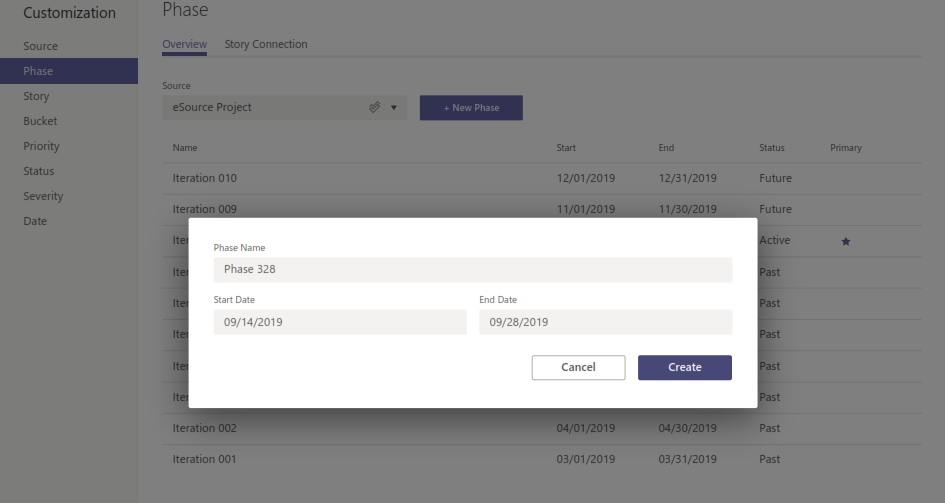
- Clicking on + New Phase will allow user to add a new phase to the list.
-
Another source is selected:
- User can click Go to Source to open a tab to that source’s website.
Story Connection
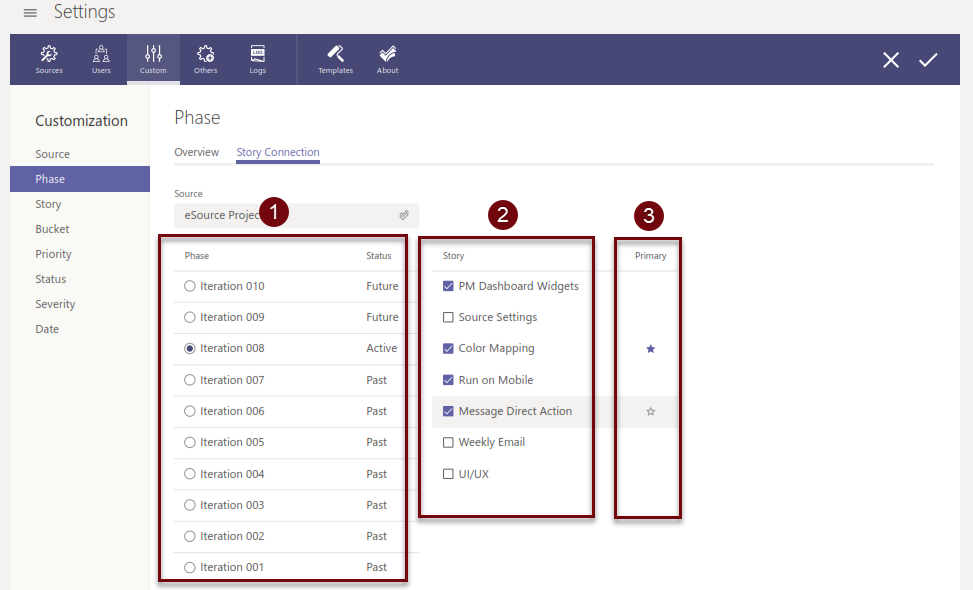
Story Connection is only available to eSource
-
When user selects a phase in the eSource, (2) and (3) are shown. The primary phase in the Overview subtab will be auto-selected when user enters Story Connection subtab.
-
Select a Story to assign into that project. When user creates a new task in the selected phase, they can only select the assigned stories.
-
Select a primary. When user creates a new task/bug in this phase, the primary story will be auto-assigned.
Story
Overview
-
eSource is selected
-
List all the Story from eSource.
-
User can hover over the right end of a Story to edit
or delete it.
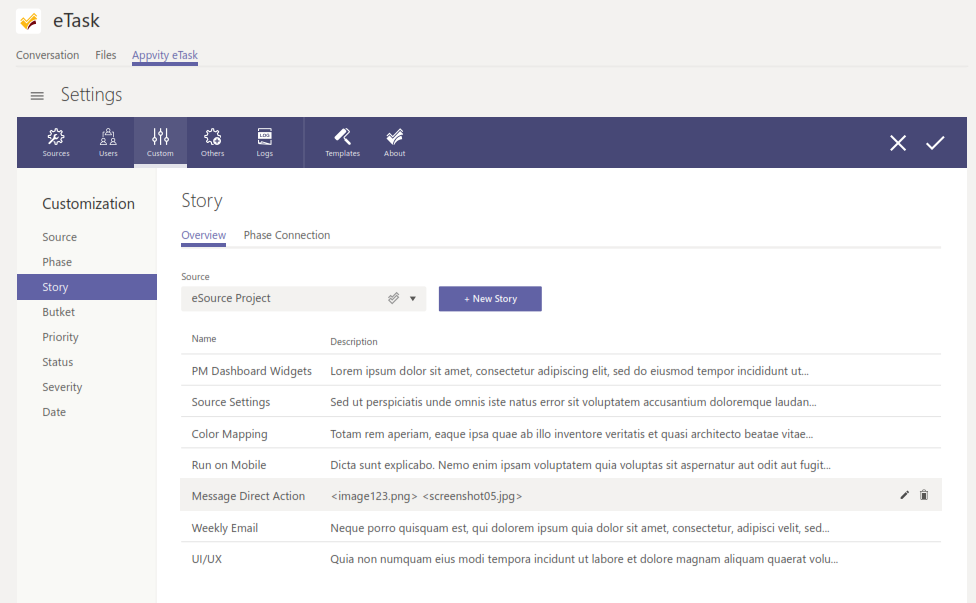
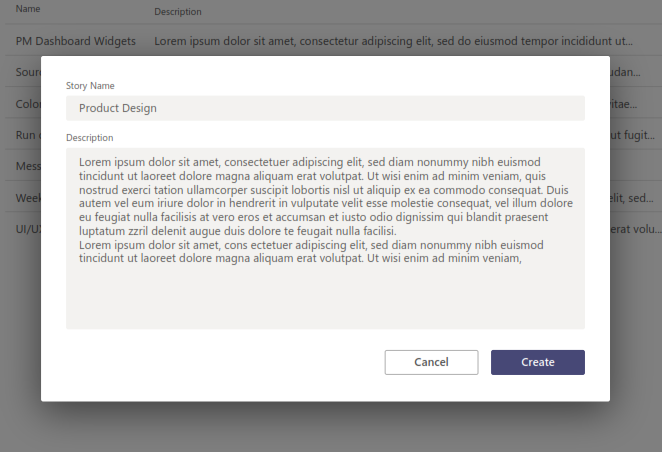
- Clicking on + New Story will allow user to add a new story to the list.
-
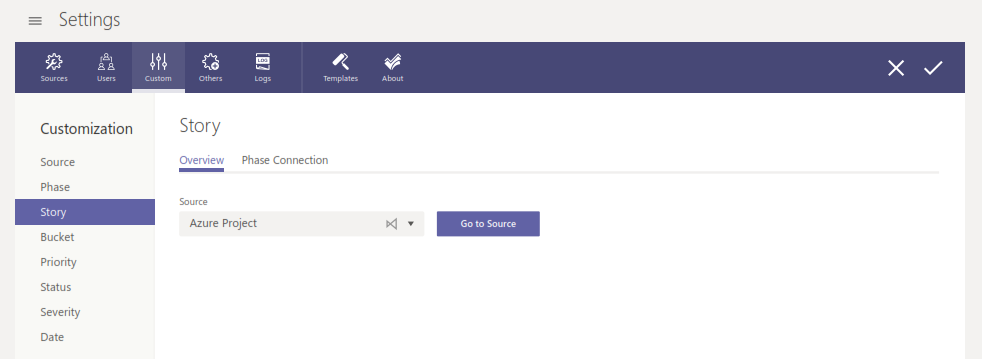
Another source is selected:
- User can click Go to Source to open a tab to that source’s website.
Phase Connection
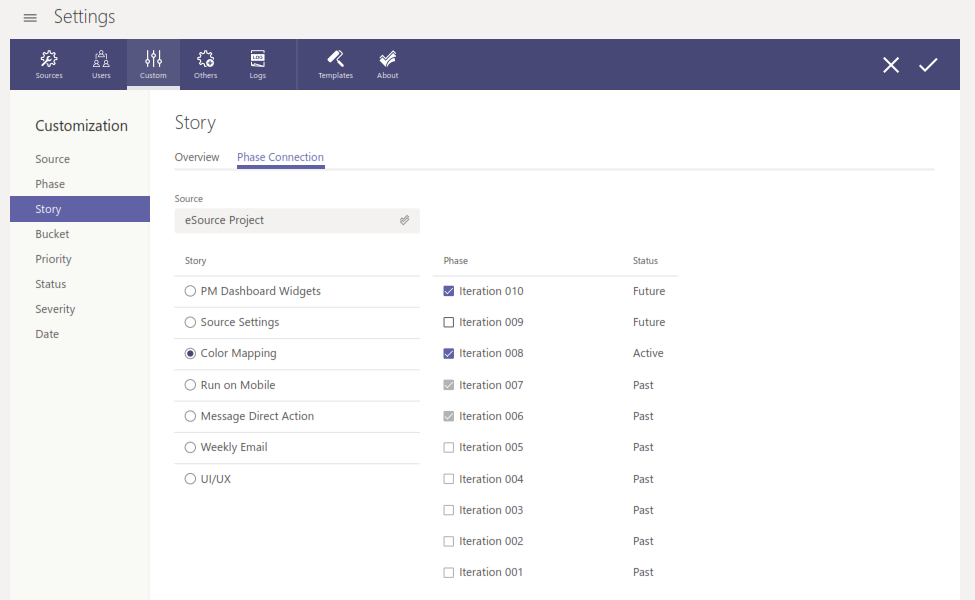
Phase Connection is only available to eSource.
User can select a Story and choose which phase it is in.
The primary story in the Overview subtab will be auto-selected in the Story list when user enters the Story Connection subtab.
Bucket
TBD
Priority
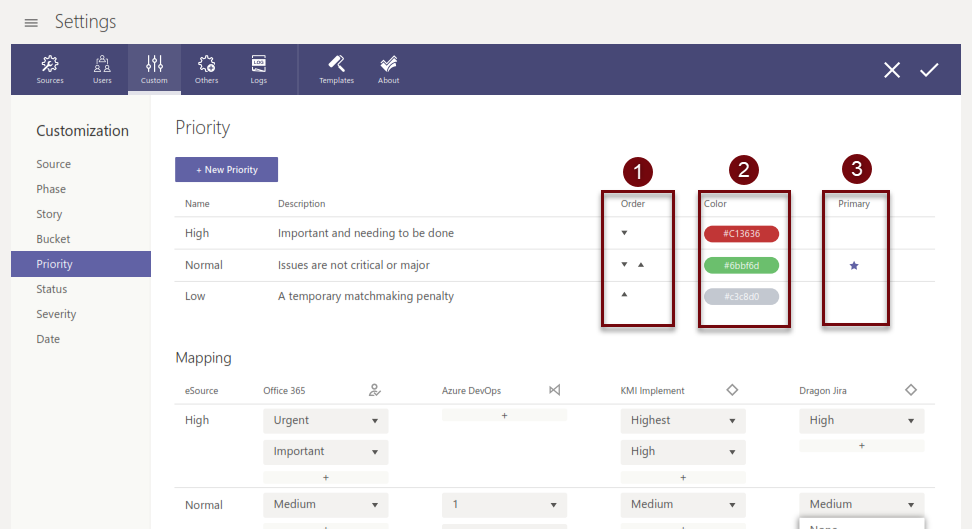
By default, there are 3 priorities in eTask: High, Normal, and Low.
-
Color is auto-assigned to each priority. User can assign a different color if they need.
-
If a priority is selected as primary, it will be auto-assigned when user creates a new task/bug.
Mapping
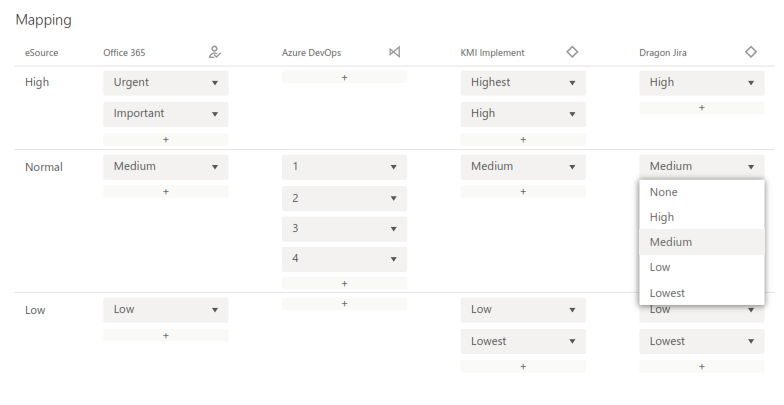
Priority mapping currently supports for Microsoft Planner, Azure DevOps, and Jira.
By default, certain priorities from other sources are automatically mapped to eTask default priorities.
-
High: High, Highest, Urgent, Important
-
Normal: Normal, Medium, Average
-
Low: Low, Lowest
To add a new priority from a Source, click  on that source row, at the desire priority column and select it.
If user selects None on the dropdown box, the box is removed.
Status
eTask
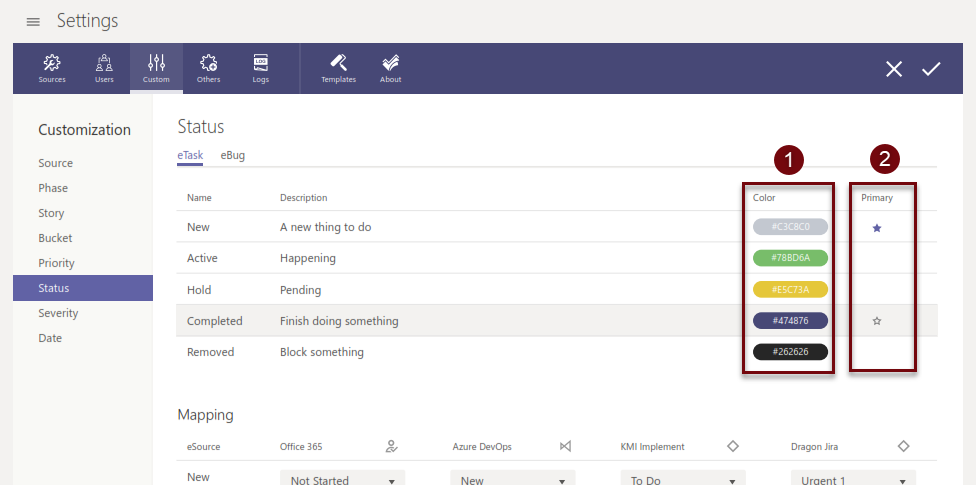
By default, there are 5 statuses in eTask: New, Active, Hold, Completed, Removed.
-
Color is auto-assigned to each status. User can assign a different color if they need.
-
If a status is selected as primary, it will be auto-assigned when user creates a new task.
Mapping:
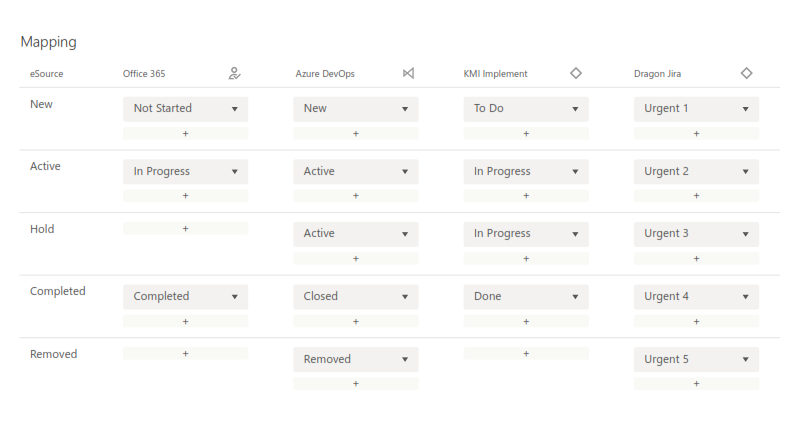
eTask Status mapping currently supports Microsoft Planner, Azure DevOps, and Jira.
By default, certain statuses from other sources are automatically mapped to eTask default statuses.
-
New: New, Not started, To Do
-
Active: Active, In Progress
-
Hold: Active, In Progress, Pending, Hold
-
Completed: Completed, Closed, Done
-
Removed: Removed, Delete, Block
To add a new status from a source, click on that source row, at the desire status column and select it.
If user selects None on the dropdown box, the box is removed.
eBug
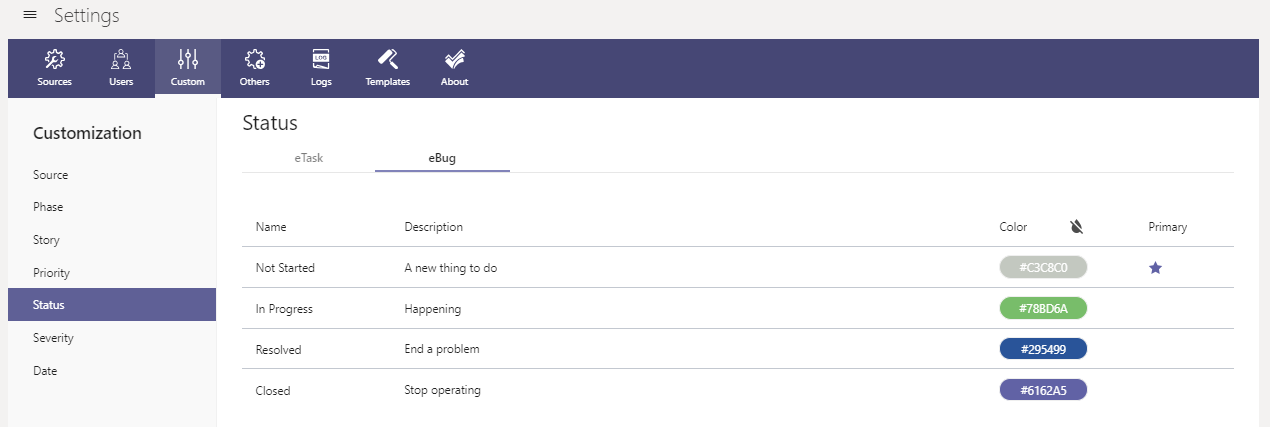
This session behaves similar to eTask. By default, there are 4 statuses in eBug: New, Active, Resolved, and Closed.
-
Color is auto-assigned to each status. User can assign a different color if they need.
-
If a status is selected as primary, it will be auto-assigned when user creates a new bug.
Mapping
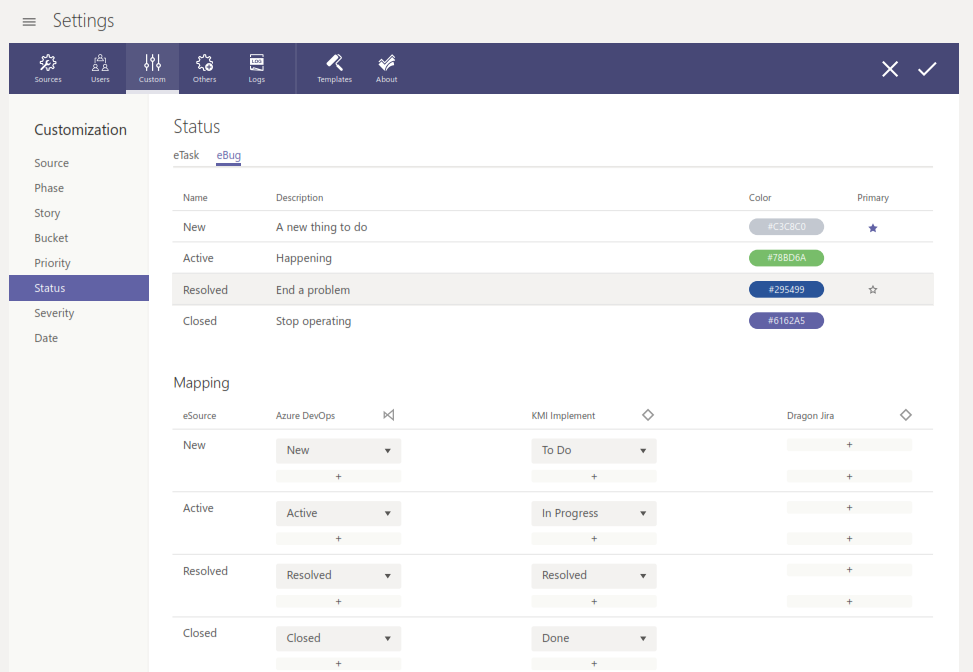
eBug Status Mapping currently supports Azure DevOps, and Jira.
By default, certain statuses from other sources are automatically mapped to eBug default statuses.
-
New: New, Not Started, To Do
-
Active: Active, In Progress
-
Resolved: Resolved, Done
-
Closed: Closed, Completed
Severity
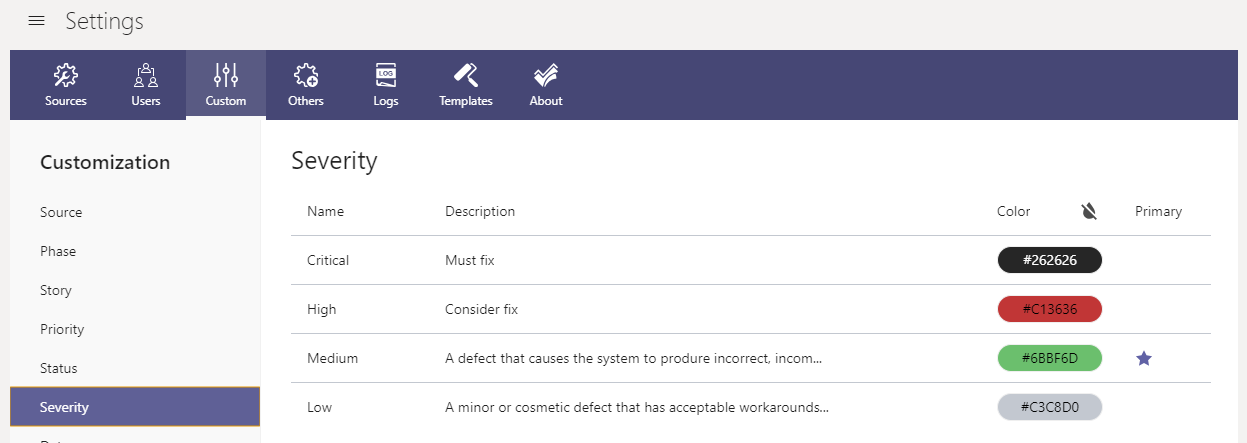
This session behaves similar to Priority. By default, there are 4 severities in eBug: Critical, High, Medium, and Low.
-
Color is auto-assigned to each severity. User can assign a different color if they need.
-
If a severity is selected as primary, it will be auto-assigned when user creates a new bug.
Mapping
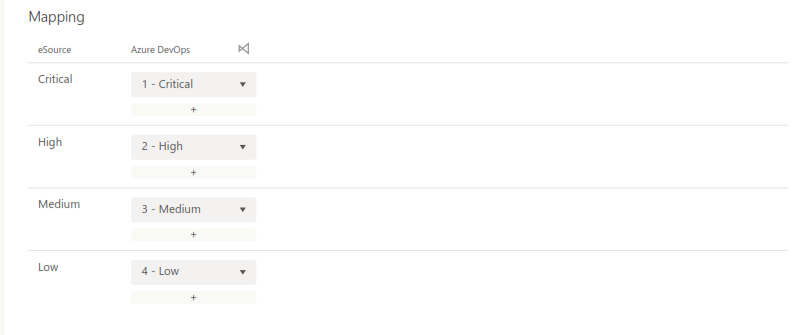
Severity mapping currently supports Azure DevOps.
By default, certain severity from other source is automatically mapped to eTask default priorities.
-
Critical: Highest, Urgent, 1 - Critical
-
High: High, 2 - High
-
Medium: Normal, Medium, Average, 3 - Medium
-
Low: Low, Lowest, 4 - Low
To add a new severity from a Source, click on that source row, at the desire priority column and select it.
If user selects None on the dropdown box, the box is removed.
Date
Working Time
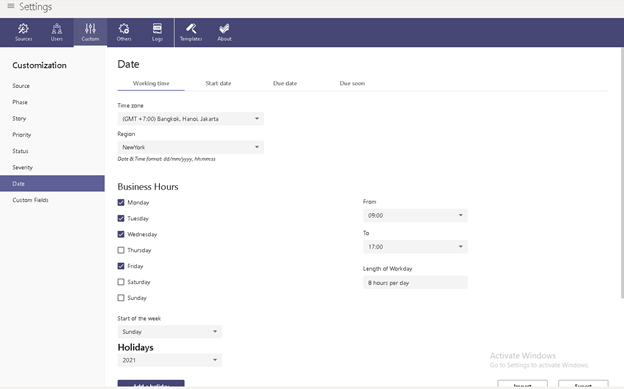
- Select Time zone
- Select Region: To get the date time format.
- Business Hours
- Select the working days
- And the working hours for each day.
- Select “Start of the week” to standardize the weekly loop.
Holidays
- Select the appropriate year, the grid below will show holidays for each selected year.
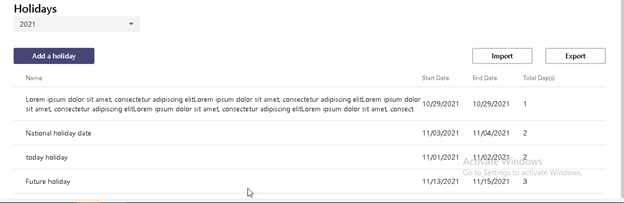
- Click on “Add a holiday” to add.
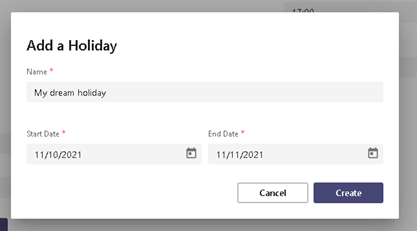
- Does not allow to add duplicated holidays.
- Export holidays to Excel – export all days in holidays.
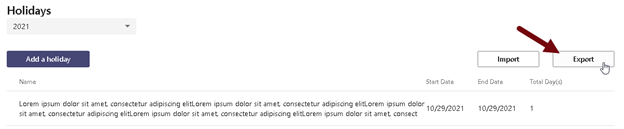
- Import a holiday
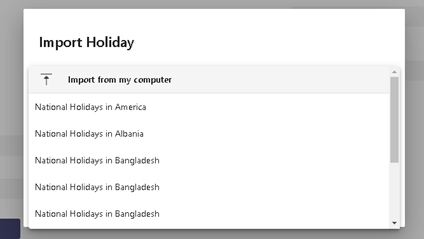
- Import from exported holidays from another channel
- Import from our library – eTask prepared the defined holidays of countries.
Start date – Due Date
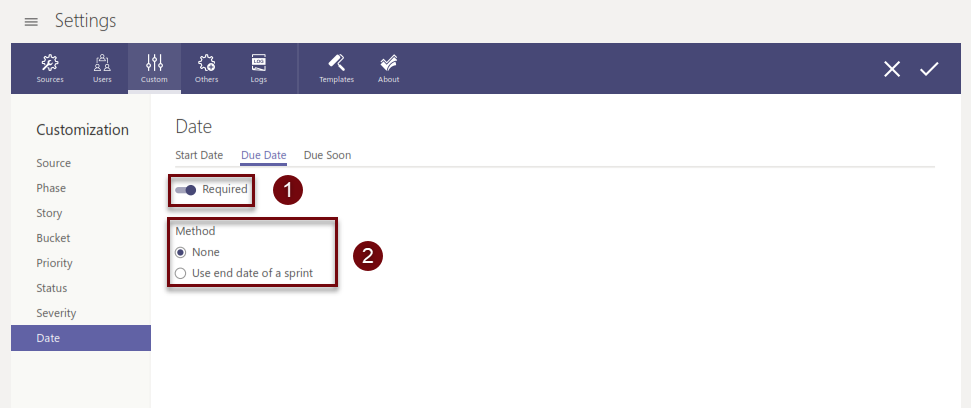
-
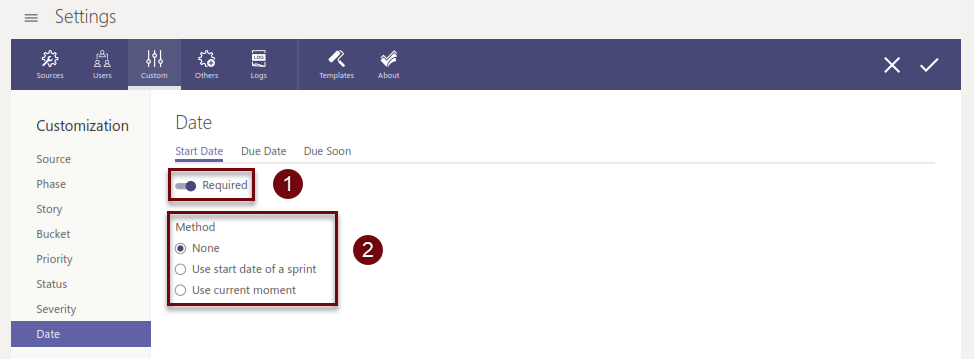
User can toggle on/off the requirement for start date or due date.
-
The selected option will be auto-assigned when user creates a task:
-
None: Blank.
-
Use start date of a sprint (Use end date of a sprint): The start/due date of the assigned phase will also be assigned to the task’s fields.
-
Use current moment (only for Start date): Use the time that the task is created.
-
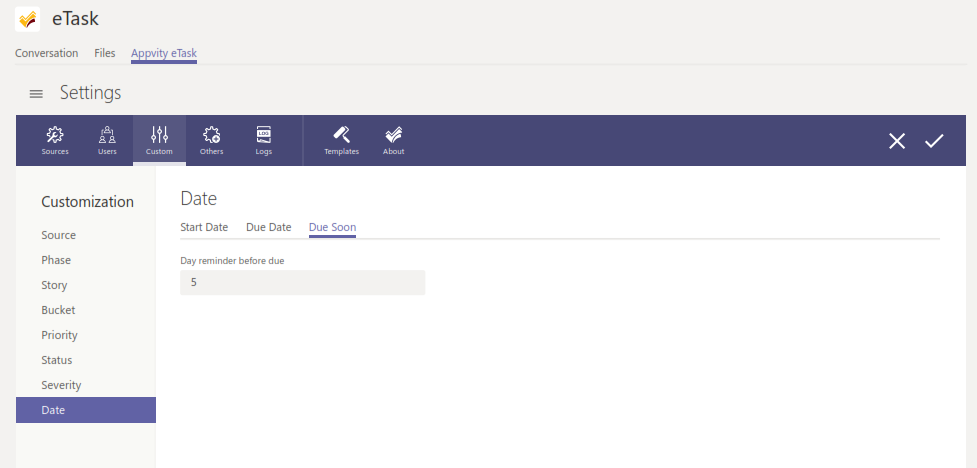
Due Soon
The number of days here will determine if a task is about to reach its due date.
Custom fields
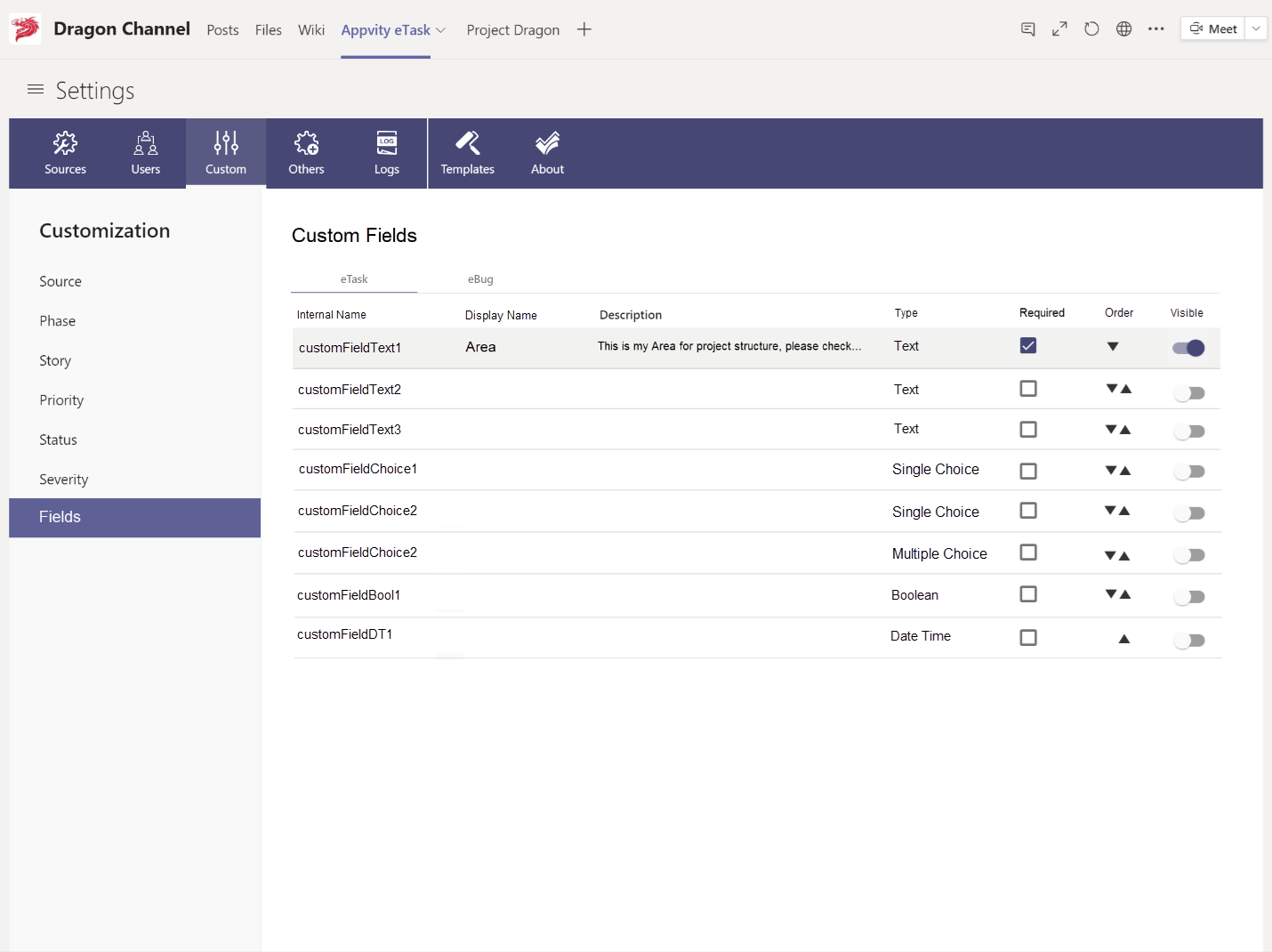
By default, there are 8 deactivated custom fields are being offered.
-
Internal Name: Is the name that can be used when import data, and REST APIs.
-
Display Name: To be shown in Task Form, Grid, and other places in eTask system.
-
Description: A short description for the custom field.
-
Type – Currently, we are supporting 3 types of data:
-
Text
-
Choice
-
Date Time
-
-
Custom fields can be set to “Required” – to be required in task/bug form.
- There is no need to set required for Single Choice fields.
-
Custom fields can be ordered to be shown in the following places: task/bug form, filter pane.
-
Custom fields can be set to “Visible” – to be shown in Task/bug form, Grid, and Filter. For import function, it allows to edit all custom fields even if they are deactivated.
-
If there are existing tasks/bugs, and then newly added custom fields is enabled, the enabled custom fields will be shown in:
-
Task/bug form: Empty value or unchecked.
-
Grid view: Empty values.
-
-
Visible custom fields will be shown in Show/Hide icon in Team Task and follow the order in settings.
Custom field edit form
Select a custom field to setup the following information:
-
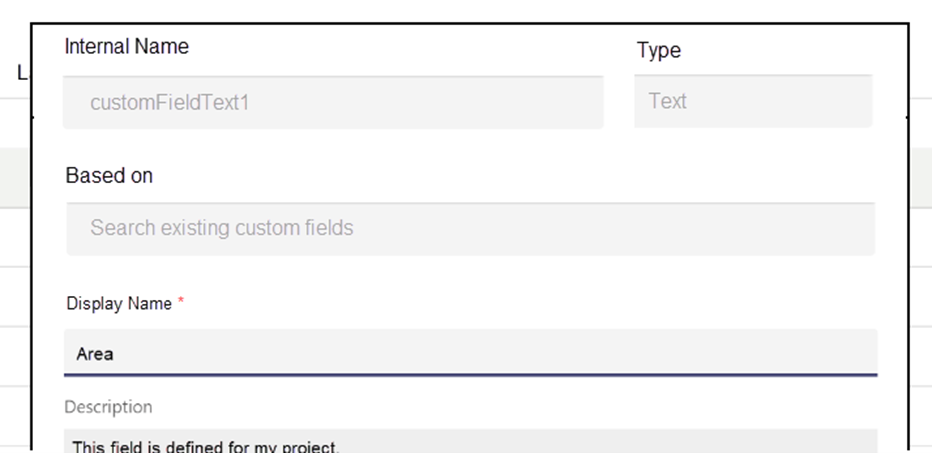
Internal Name: showing “Internal name” of the selected custom field.
-
Type: showing “Type” of the selected custom field.
-
Based on:
-
Loading all existing custom fields which are being activated, same “Type”, and for both eTask and eBug.
-
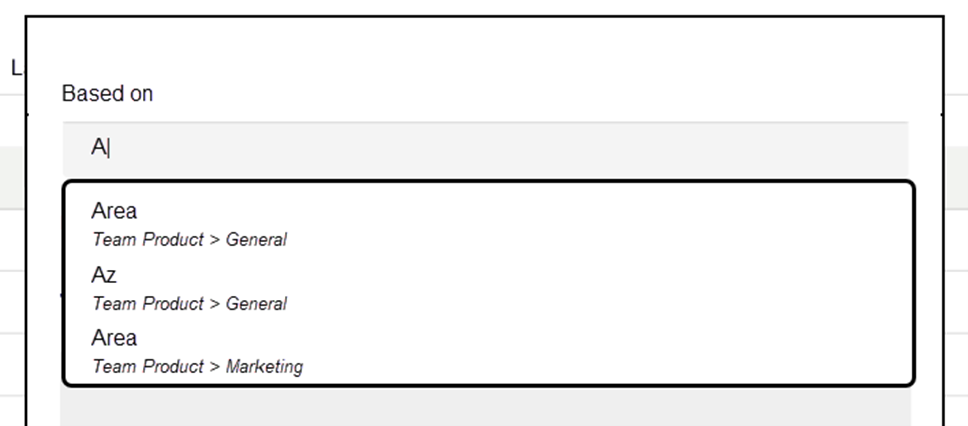
Type in the input to open pop-up for keyword suggestion.
-
The suggestion will show this information: Field Name, Team > Channel.
-
Sort by: Field Name – From A to Z.
-
-
When an existing custom field is being selected, the Field name, Description, Control Type, or Value will be copied as same as that existing custom field.
-
-
Field name (required field)
-
Description:
-
Data Type (required field):
-
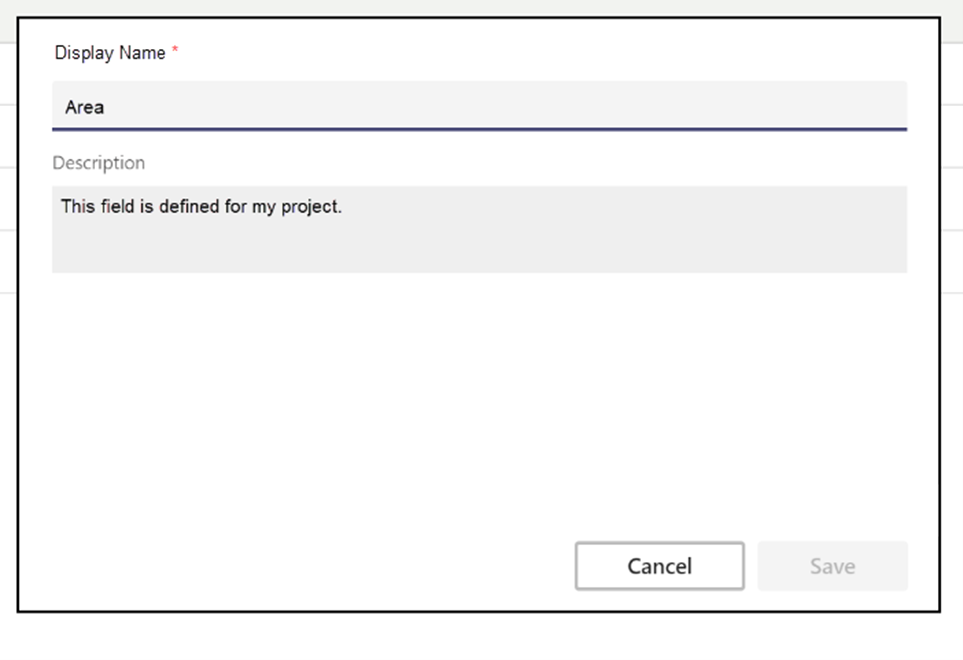
Text:
-
Control type: Input text
-
Value: limit 255 characters
-
-
Choice:
-
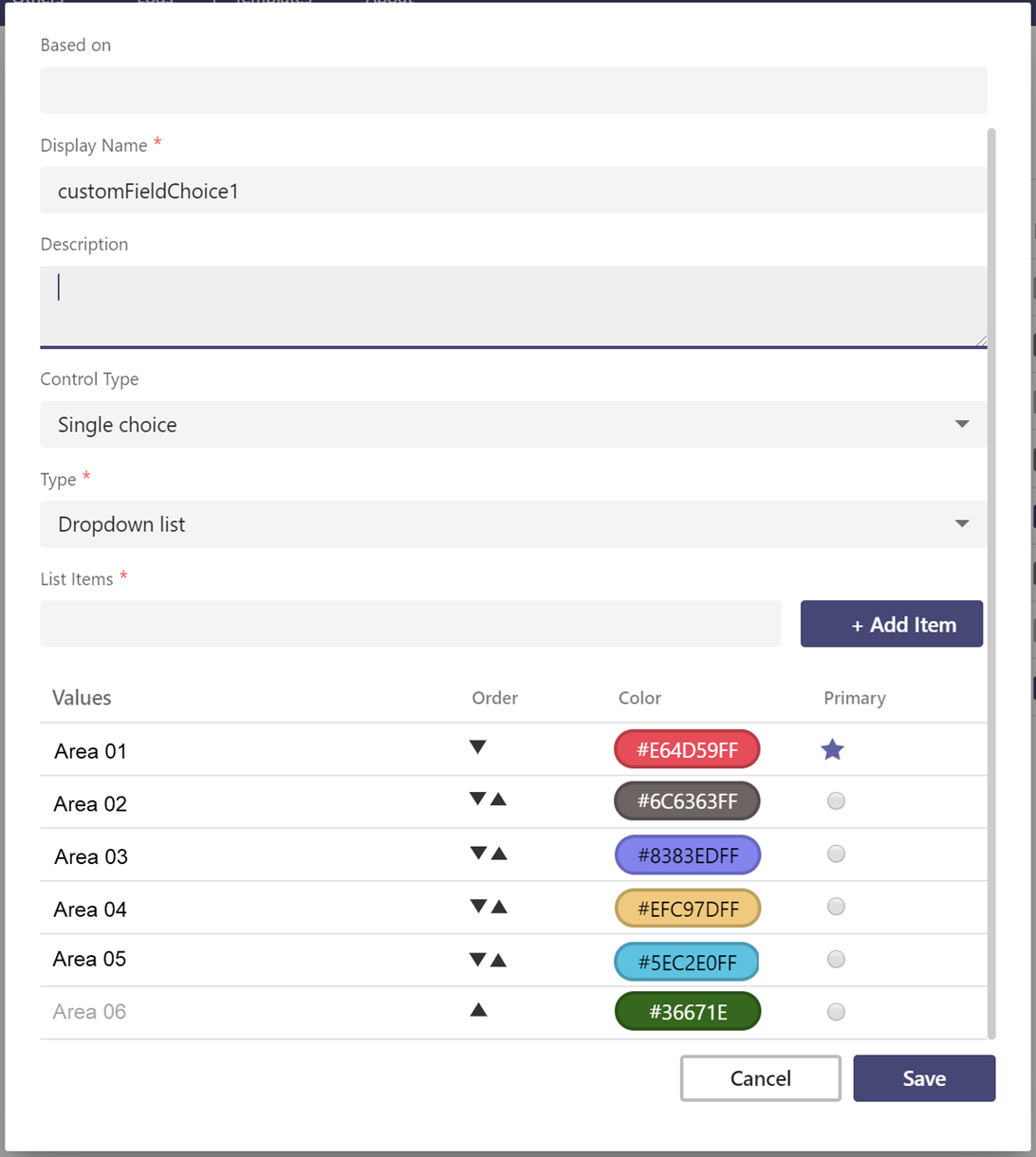
Control types:
-
Single choice (Type):
-
Dropdown list
-
Radio button
-
-
Multiple choice (Check box).
-
-
Value: limit 8 items.
-
Order by: list items ordering.
-
Default: set 1 default value when loaded (for Single choice only, the Multiple choice will not have Default column)
-
Remove an item:
-
The default value of “Single choice” cannot be deleted.
-
Deleting an existing choice with existing tasks’ value may affect your data. If there is an existing item with a removed choice, the task still keeps the value unless you change it. So please be concerned when changing existing value.
-
-
Changing control types from Single choice to Multiple choice and vice versa:
-
When user changes the option from Single choice to Multiple, a pop-up form will be shown: “Some work items might have old values. Are you sure you want to change it?”
-
Click “Yes” to take effect.
-
Click “No” to cancel.
-
-
After changing control type, the data in task/bug will be the same and:
-
On Grid View, the custom field will be shown the selected values.
-
On Task/Bug Form, the custom field will be empty (if the value is missing or unmatched with the settings) and showing the existing values in Settings.
-
So please be concerned when changing existing control type.
-
-
When user changes the option from Single choice to Multiple, the checkbox option will be kept the same value.
-
-
-
-
Date Time:
-
Control Types:
-
Date picker
-
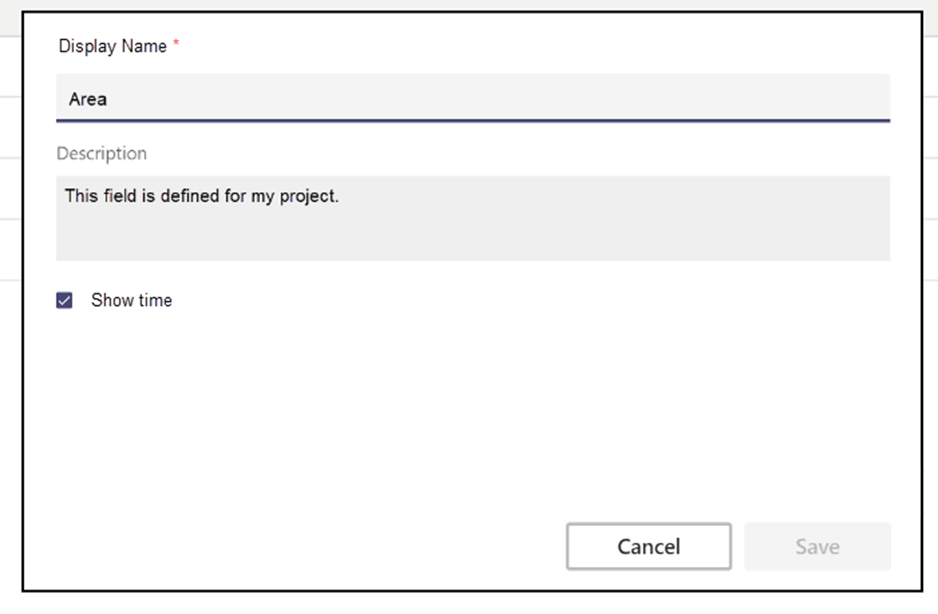
“Show time”: showing time selection.
-
-