Source
eSource
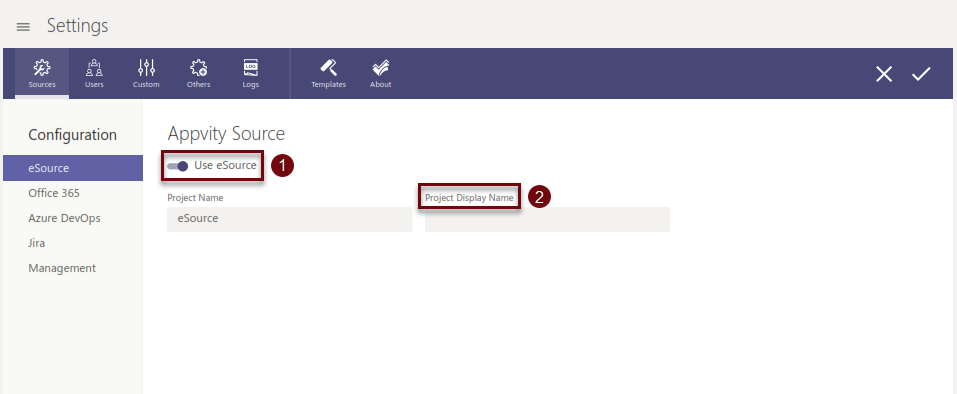
eSource is the default source to store eTask tasks when user installed the app.
-
Select to enable the source (on by default for eSource).
-
The project display name will be shown in eTask instead of the project original name.
Office 365
-
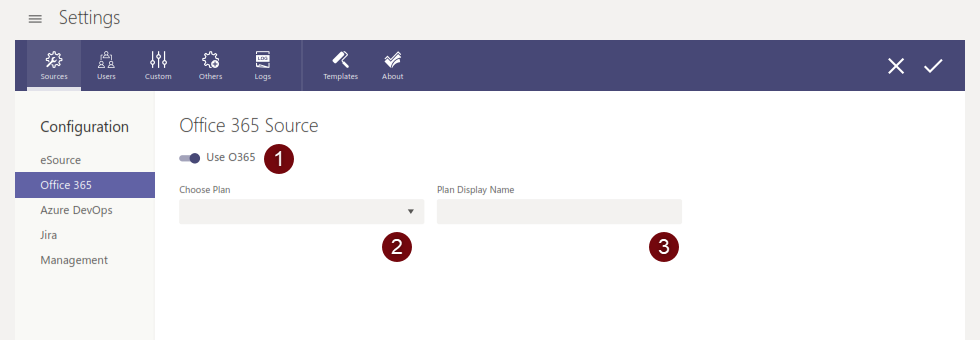
Select to enable the source.
-
Select which plan to import into eTask.
-
The project display name will be shown in eTask instead of the project original name.
Azure DevOps
-
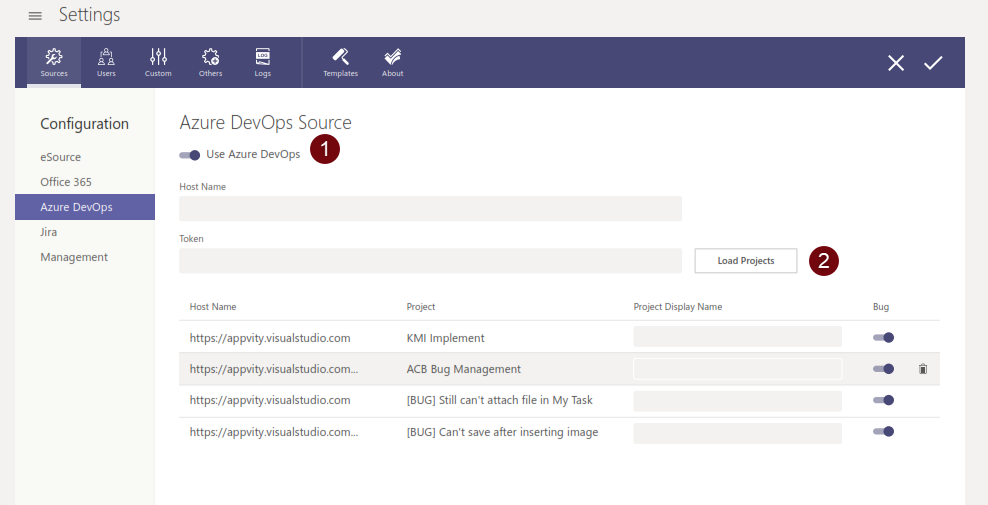
Select to enable Azure DevOps as source.
-
After entering Host name and Token, click on Load Projects.
-
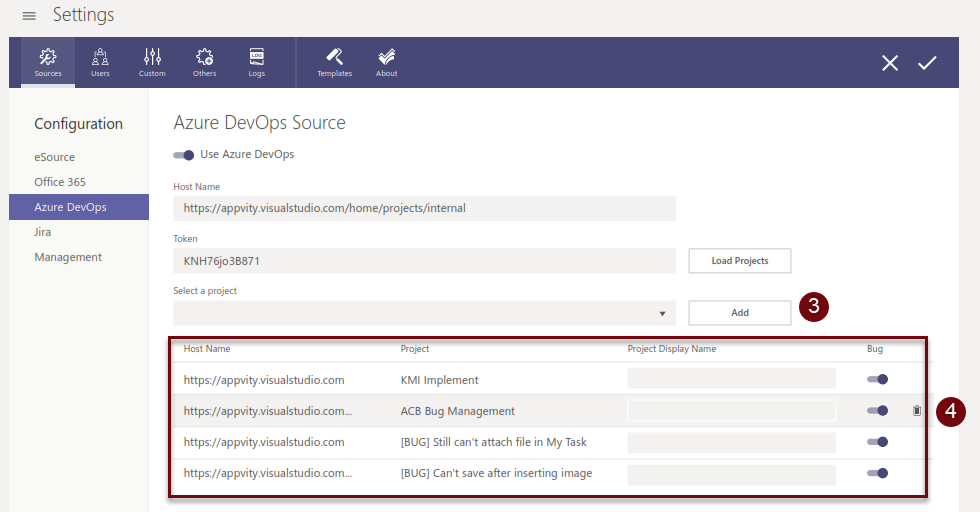
Choose the project(s) and click Add.
-
The projects user chose will be shown in this area:
-
Project Display Name will be shown in eTask instead of the project original name.
-
Bug: Enabling Bug will also import the bugs from the source. eBug is required to see them on eTask.
-
Remove: User can hover over the right end of the project and click on [] the trash can to remove the project from the list. eTask will stop syncing to the project.
-
Jira
-
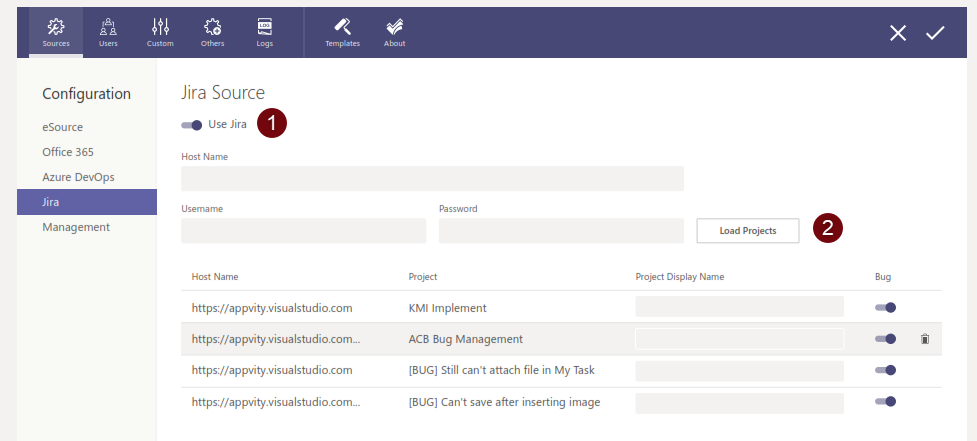
Select to enable Jira as source.
-
After entering Host Name, Username, Password, click on Load Projects.
-
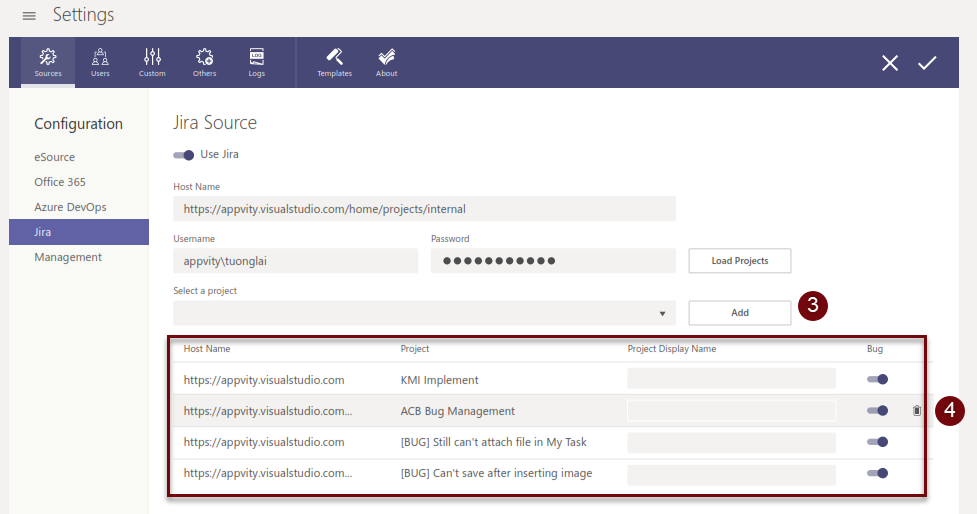
Choose the project(s) and click Add.
-
The projects user chose will be shown in this area:
-
Project Display Name will be shown in eTask instead of the project original name.
-
Bug: Enabling Bug will also import the bugs from the source. eBug is required to see them on eTask.
-
Remove: User can hover over the right end of the project and click on [] the trash can to remove the project from the list. eTask will stop syncing to the project.
-
Management
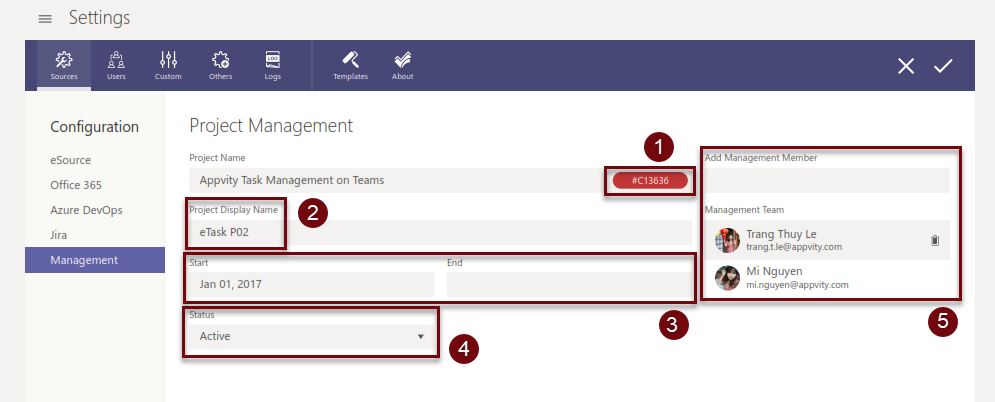
This section allows project manager to edit the current project’s information.
-
A color code is auto-assigned to each project on eTask. User can choose another color.
-
The Project Display Name will be shown on eTask instead of the project original name.
-
The start date and due date are the lifetime of the project.
-
Set the Status of the project (New, Active, Closed). By default, the status is New after creating.
-
Enter Office 365 username and add them here to grant them permission as a project manager.


